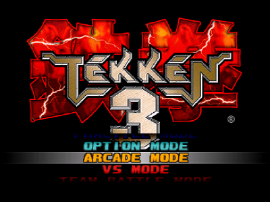
Tekken 3 Online can load on a phone or tablet, but a mobile fighting-game session needs a little more care than a desktop session. The screen is smaller, touch input is less precise, and the browser may be sharing memory with several other apps. This guide gives you a realistic way to test mobile play and tells you when a desktop setup will be the better choice.
Start from the Tekken 3 Online game page, let the local EmulatorJS session finish loading, and treat the first round as a device check. The goal is not to force every phone to behave like a console. The goal is to get a readable, responsive short session when your device and browser can support it.
Can you play Tekken 3 Online on mobile?
Yes, the page can load on current mobile browsers. The practical limit is control quality. Touch controls occupy part of the display and make directional movement harder to repeat, especially during fast side-steps, guard changes, and short punishment windows. A phone is fine for testing the page, revisiting a character, or playing a few casual rounds. A larger screen and physical controller remain the safer choice for a long session.
Set up the phone before pressing Play
- Use a current browser. Chrome, Safari, or another maintained mobile browser is a better starting point than an old embedded web view.
- Close heavy apps and extra tabs. Video, social feeds, and large web apps can leave less memory for the emulator.
- Turn the phone sideways and go fullscreen. Landscape gives the game more usable width and leaves less of the action hidden by your hands. On phones, the player's fullscreen mode also locks the screen to landscape where the browser allows it. Fullscreen cannot fix touch precision, but it gives the play area more room and reduces accidental browser-bar taps.
- Keep the browser page focused. Do not switch apps while the initial session is loading. Let the emulator complete its boot sequence first.
- Check that touch controls appear. Phones show the on-screen gamepad by default. Many iPads identify themselves to websites as desktop computers, so the touch controls may stay hidden. If no on-screen buttons appear, open the player's settings menu and set Virtual Gamepad to Enabled.
If the page looks stuck during the first load, wait a little longer before pressing random controls. The PlayStation session has a normal boot phase. A single refresh is reasonable when the page clearly failed, but repeated reloads make it harder to tell whether the issue is network, memory, or input focus.
Make touch controls less frustrating
Touch play works best when you keep the session simple. Use the largest comfortable landscape view, avoid rapid multi-finger gestures until you know how the browser maps them, and test movement before you start a serious round. If the virtual controls cover the action, move your hands lower and give yourself a clear view of the opponent's feet and spacing.
Do not judge the game from one missed input. Touchscreens have no physical travel, so it is easy to slide too far or hit two areas at once. Use a short practice round to learn the device's response. If you already own a compatible Bluetooth controller, pairing it before loading the game will usually produce a more repeatable result than touch alone.
What to do when performance drops
A hot phone, low battery, aggressive power-saving mode, or crowded browser can all make a fighting game feel slow. Close background apps, remove the phone from direct heat, and test again after the emulator has settled. Keep the network stable during the initial load. The game image is roughly 33 MB, so a weak mobile connection can make the first start look stuck even though the session itself then runs in the browser player.
If the frame rate remains uneven after those checks, switch to desktop. That is not a failure of the page. Tekken 3 rewards clear timing, and a laptop or desktop gives the browser more room, a larger display, and better controller options. The smooth browser guide explains the desktop setup in more detail.
Mobile and two-player expectations
One phone is not an ideal two-player setup. Sharing a touch screen hides the action and makes separate inputs difficult to repeat. If you want local versus play, use a desktop or laptop with one or two recognized controllers and follow the two-player local setup guide. The mobile page is primarily for a quick solo session.
A sensible mobile session
Start with a short round, landscape orientation, a clear browser window, and one stable input method. If movement and guard feel readable, keep playing. If the screen, touch response, or heat makes every exchange feel uncertain, move to a larger device instead of trying to compensate with more remapping.
Tekken 3 Online works best when the browser disappears behind the match. On mobile, that means giving the page enough memory, enough screen space, and enough time to load. Once those basics are in place, a phone can be a convenient way to revisit the game without a separate download or desktop emulator installation.