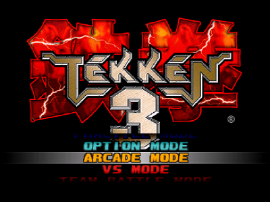
If you searched for Tekken 3 Online 2 Player, you probably want a quick local versus session rather than another complicated emulator setup. The browser player on Tekken3Online.com is built for that short path: load the PlayStation session, connect the inputs you want to use, and get to a match without installing a separate desktop emulator.
This guide explains the practical setup. It also draws an important line early: this page supports local versus play inside one browser session, where two people share the same device and the emulator reads both sets of inputs. The section on online multiplayer below explains why that is different from playing someone remotely.
What two-player play means here
Tekken 3's versus mode is the natural place to start. The first player chooses a fighter, the second player chooses a fighter, and both inputs are read by the same running session. That makes a controller-friendly desktop or laptop the safest setup. A phone can load the page, but two-person touch play quickly becomes cramped and inconsistent.
The browser page is a direct route to the game session, not a promise that every browser exposes two separate gamepads in the same way. Input support depends on the operating system, browser, controller, and the EmulatorJS mapping layer. Treat the first round as a setup check, then keep the working arrangement stable.
The simplest local setup
- Use a desktop or laptop first. A larger screen gives both players room to read movement, spacing, and the round timer.
- Open the Tekken 3 Online game page. Press Play and wait for the PlayStation session to finish its initial load.
- Connect controllers before starting a serious match. Wired controllers are usually the easiest baseline. If you use Bluetooth, connect both devices before returning focus to the game. Browsers often hide a controller until you press one of its buttons, so press a button on each controller once the page is open.
- Confirm the player assignments. Controllers are assigned in the order the browser detects them: the first becomes Player 1 and the second becomes Player 2. Open the Controls settings inside the game player, switch to the Player 2 tab, and check the Connected Gamepad dropdown to confirm or change the device. Then move one direction and press one attack button at a time to confirm that each device controls only its own side.
- Start with a short versus round. Use the first match to find the guard, movement, and attack inputs. Remap only after you know which device or browser layer is causing the problem.
If you are sharing a keyboard, Player 2 has no keys until you bind them in the Player 2 tab of the Controls menu. Choose a compact layout that does not overlap with Player 1's keys. Two players reaching across the same keyboard creates accidental presses and makes the game feel broken when the real problem is hand position. A controller for at least one player usually gives the session more room.
Controller checks that save time
The most common two-player problem is not the game. It is an input chain that was never tested. Check that both controllers appear to the browser, that each device has a distinct assignment, and that no other game or desktop utility is capturing the buttons. If the second controller does nothing, press one of its buttons, then open the Controls menu and check which device is selected in the Connected Gamepad dropdown on the Player 2 tab. Then click back into the player and test again. Reload once only if the controller still does not appear in the device list.
Avoid changing devices in the middle of a round. Browser gamepad mappings can settle after the page receives focus, and swapping from keyboard to controller while the emulator is running makes the diagnosis harder. Pick the arrangement that works, then keep it for the session.
Local versus play is different from online multiplayer
Search results often use “online” to mean “play in a browser.” That is the sense used by this site. The session is delivered online, but the two-player match itself is local to the running browser and emulator. There is no remote lobby, matchmaking queue, or netplay guarantee on this page.
That distinction keeps expectations useful. If you want a couch versus match, this setup is the right shape. If you want to play with someone in another city, you need a separate netplay-capable emulator and a connection method that this site does not provide.
When the match feels wrong
If inputs are delayed, close heavy tabs and let the emulator finish loading before testing again. If the screen is too small, use fullscreen after the session is stable. If one player gets repeated inputs, check keyboard rollover or controller pairing before changing game settings. If the browser becomes unresponsive, reload the main game page once and rebuild the input setup in the same order.
For a single-player session, the existing browser smooth-play guide covers device choice, focus, fullscreen, and general performance. For a phone or tablet, use the mobile Tekken 3 guide before expecting two-person touch play to feel comfortable.
A good first match
Keep the first round simple. Confirm both players can move, guard, and perform one reliable attack. Do not spend the opening minute chasing advanced strings while one controller is still mapped incorrectly. Tekken 3 becomes much more enjoyable when the setup disappears and both players can focus on spacing, punishment, and reading the next move.
Once the local arrangement is stable, the site does what it needs to do: put a short route between you and a classic versus match. Start small, verify the inputs, and let the game carry the rest.